



![2nd Oct: Ma (2019), 1hr 39m [R] – Streaming Again (5.8/10)](https://occ-0-788-1001.1.nflxso.net/dnm/api/v6/0Qzqdxw-HG1AiOKLWWPsFOUDA2E/AAAABau0gnq4WT1f9RC5sMejW5XcnAyDa_NaxNxHfMMD_u5ahvZP8hO28z4M3waaoX5sS_EQYkf3TMMqvnxzOmCOy_mLBjLb-3fhM3HQ.jpg?r=fe8 "2nd Oct: Ma (2019), 1hr 39m [R] – Streaming Again (5.8/10)")



![2nd Oct: Minions (2015), 1hr 30m [PG] – Streaming Again (6.2/10)](https://occ-0-788-1001.1.nflxso.net/dnm/api/v6/0Qzqdxw-HG1AiOKLWWPsFOUDA2E/AAAABbzN-SxT3FgaPj5S6COQ39F4UaqrICEysKrqKit6ZPzxilvQYe6ATckoSR8gQYthjx7n9rdnwSWmBiQu8WTjRbt-WbC33IGjr2p2.jpg?r=f48 "2nd Oct: Minions (2015), 1hr 30m [PG] – Streaming Again (6.2/10)")


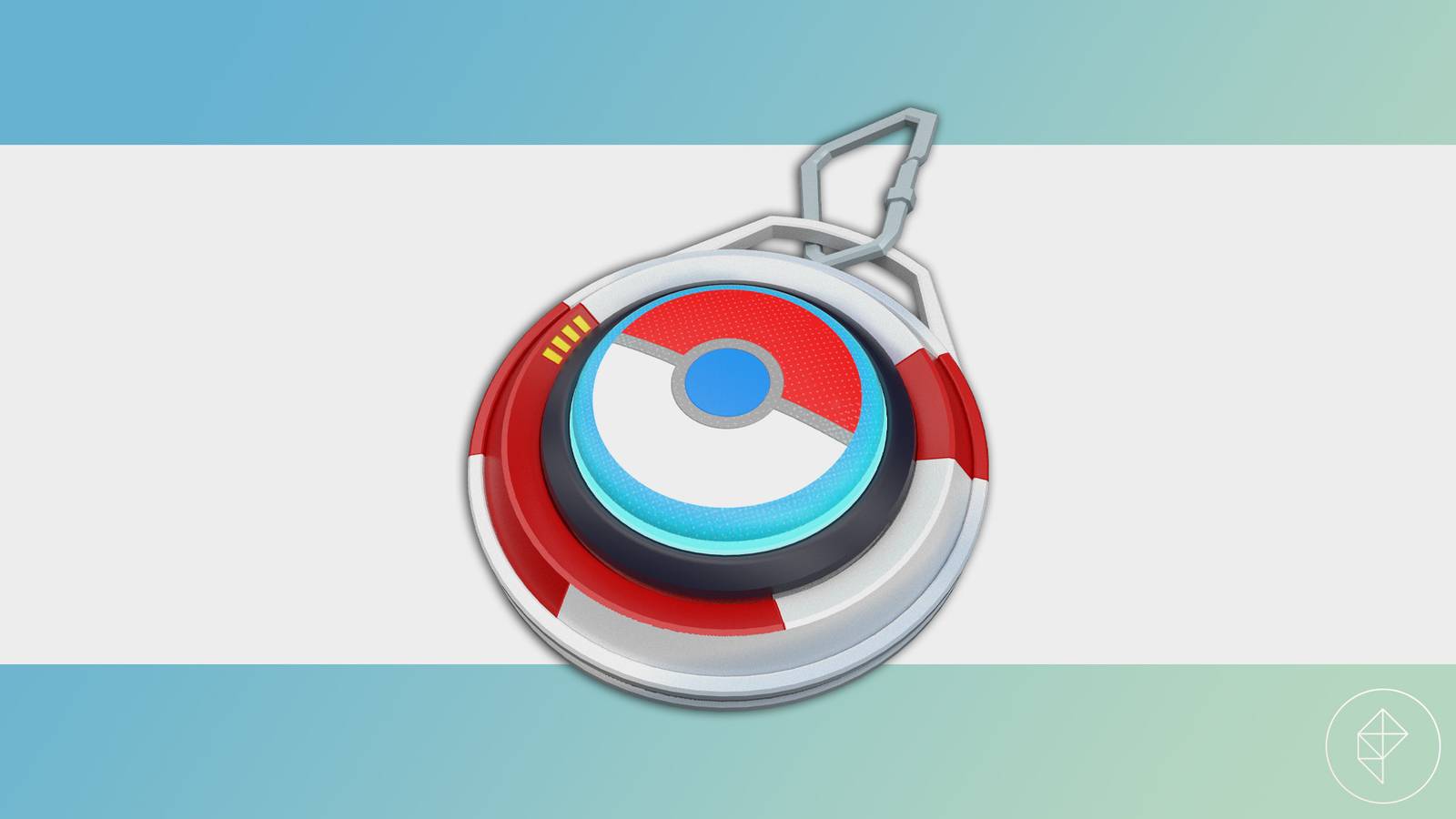
The Explorer Gadget, a new key item, has begun to roll out globally in Pokémon Go. This nifty tool will help you catch Pokémon and spin PokéStops when you’re not necessarily playing, though it has some quirks.
Note that as of writing this, this version of the Explorer Gadget seems to be in testing mode, with Scopely Explore stating that it’s in a “phased rollout.” Some players are experiencing slightly different versions of the gadget, so the functionality of this item will likely change in some way in the future.
Below we explain everything we know about the Explorer Gadget in Pokémon Go, as of its global testing release.
Update (Aug. 13): We’ve added more information about the Explorer Gadget based on information that Scopely Explore has shared in a blog post.
What does the Explorer Gadget do in Pokémon Go?
The Explorer Gadget is a digital version of the accessory devices that auto-catch Pokémon and auto-spin PokéStops for you (like the Pokémon Go Plus+ or the Poké Ball Plus). You unlock the Explorer Gadget once you hit trainer level 20.
There are a few key differences from the physical auto-catchers, based on our testing:
- There is a daily limit to how many Pokémon you can catch and how many stops you can spin (that seems to be varying for testing, according to some players).
- You seemingly need to close the game for it to work. There seems to be debate about if it works in the background or if you need to fully close the game. (On our iPhone, it worked in the background without fully force closing the app).
- The Explorer Gadget only uses Poké Balls (unlike the Go Plus+, which can use other balls).
- You don’t get notifications when catching or spinning with the gadget the way you would with a physical device.
- Scopely Explore notes in its blog that the device works “while you move at a casual pace with your smart device on your person,” so it’s likely that you may need to be moving to make it work.
- The gadget won’t try to catch Pokémon that have yet to be registered in your Pokédex or mighty Pokémon.
Simply turn on the item, minimize your app, and let it rip. You can check back in on the game and tap the Explorer Gadget icon on the right side, in the same column that displays your Lucky Eggs and other buffs, to see what you’ve caught and how close you are to the limit. You can also pause your gadget if you want it to stop catching and spinning.
Just like the physical auto-catchers, your gadget can fail to catch a Pokémon. You can see failed catches by opening your character menu and tapping “journal,” which will give you a history of what you’ve caught, spun, or failed to catch recently.
You cannot have both a physical catcher and the Explorer Gadget active at the same time. You’ll need to reconnect any physical accessories you have once you’re done with the Explorer Gadet from the respective menu. You can get there by doing the following:
- Open your settings (the gear in the top right of the screen on the menu).
- Select “Connected Devices and Services.”
- Select “Accessory Devices.”
- Tap your device to reconnect it.
While Scopely Explore has posted a blog about this new device, it still seems like some features of it are rolling out, differing by players. We’ll update this guide as more information becomes available.
